
Manage Your Media Library
How to Add Media
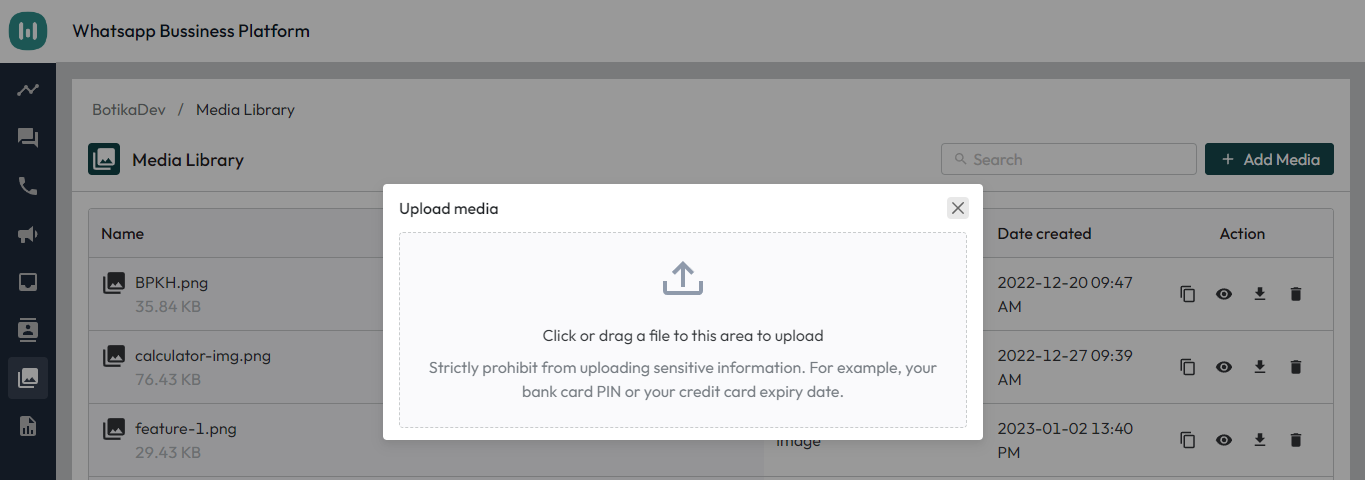
- Go to the Media Library page by clicking from the left-side navigation, and click + Add Media on the top right of the page.
- You can add files to the media library by selecting them or dragging them to the designated area.
- Once selected, the files will be automatically added to the dashboard.
Media Library Actions
Copy Media Link
To copy the link of a selected media, simply click the settings icon located next to the media, and it will be automatically copied to the clipboard.
Preview Media
If you want to preview the media you've added to the media library, simply click the preview icon to the right of the media row you want to preview. The selected media will be displayed on the right side of the page. To open the media in a new tab, click the arrow icon on the right. To close the preview tab, simply click the close icon on the right.
Download Media
To download the media, simply click on the download icon located to the right of the media.
Delete Media
To remove media that has been added, click the delete icon located to the right of the media row. This action will trigger a confirmation pop-up, giving you the option to delete or cancel the action.