
Get Started with WhatsApp Business Dashboard
Create your own account and get in touch with your customers on your WhatsApp channel
Sign Up for WhatsApp Business Dashboard
Create your account to start using WhatsApp Business Dashboard
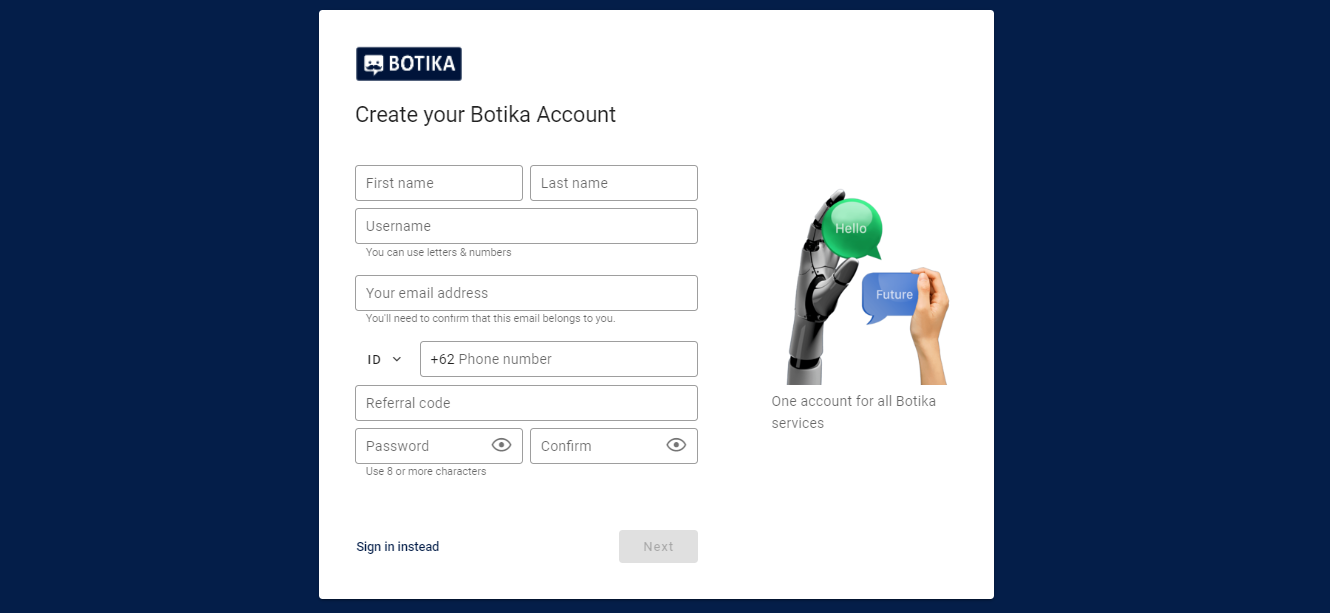
- Go to the WhatsApp Business Dashboard site at https://waofficial-rm.botika.online/
- Click the "Sign Up" link at the top of the page to create an account.
- Fill in your personal details and create a password. Once you have filled in all your details, click the "Next" button. A verification email will be sent to your registered email address.
- Complete your registration by entering the OTP code sent to your email inbox.
Log in to WhatsApp Business Dashboard
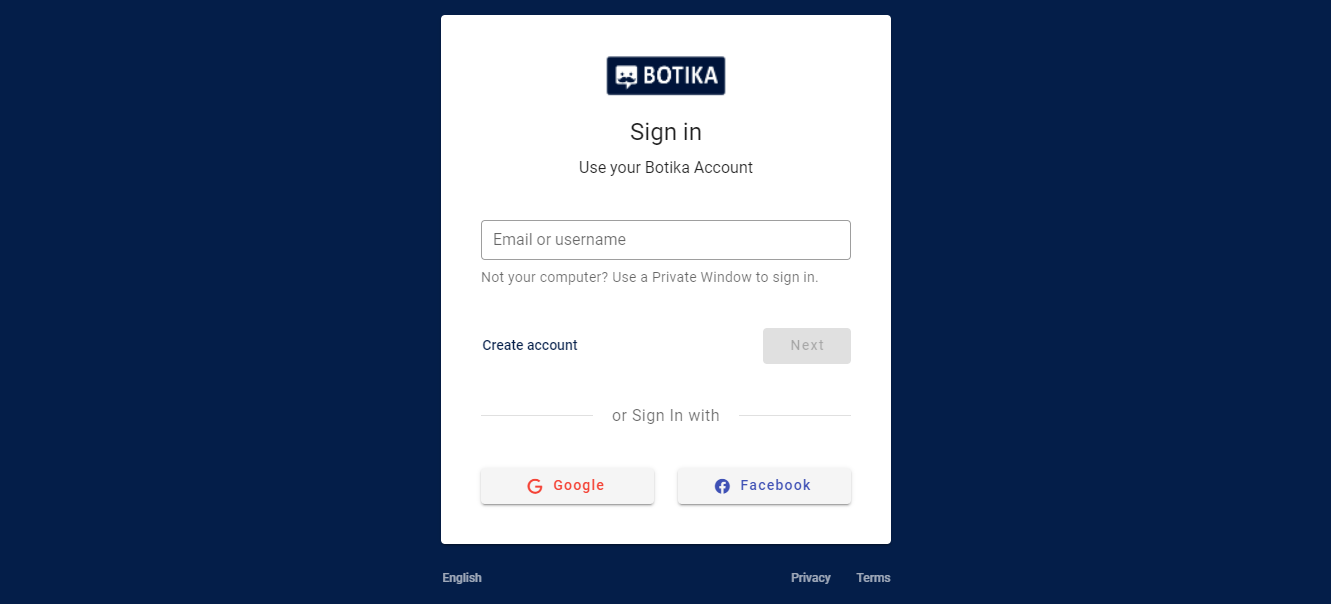
- Go to the WhatsApp Business Dashboard site at https://waofficial-rm.botika.online/
- Click the "Sign In" link at the top of the page to log in with your account. Enter your Email or Username and Password.
- Upon successful login, you will be directed to the "Get Started" page to register your WhatsApp Business account.
Register Your WhatsApp Business Account
- After your first login, you will see the "Get Started" page, which outlines the steps to register for a WhatsApp Business account. Click "Next".
- Step 1 of 3: We ensure you have a Facebook account as it is required by WhatsApp. If you don't have a Facebook account, click the "create one" link and follow the steps. If you already have one, tick the checkbox and click "Next". To register your WhatsApp Business Account, you must also have access to your company's Facebook Business Manager. If your company does not yet have a Facebook Business Manager account, the next steps will guide you to create one.
- Step 2 of 3: You will find information on the types of phone numbers eligible for a WhatsApp Business account. Once you have read and understood the information, tick the checkbox and click "Next".
- After you have completed the registration process, your request will be reviewed by Facebook for approval. Once your account is approved, you will be notified via email, and all WhatsApp Dashboard features will be unlocked. You can also start using the registered number to send messages after it is approved. While waiting for your account's approval, you can send a trial message using our trial experience feature without requiring approval or payment.
Register a New WhatsApp Number
In WhatsApp Business Dashboard, you can connect multiple WhatsApp accounts to the dashboard. Here are the steps to register a new WhatsApp number:
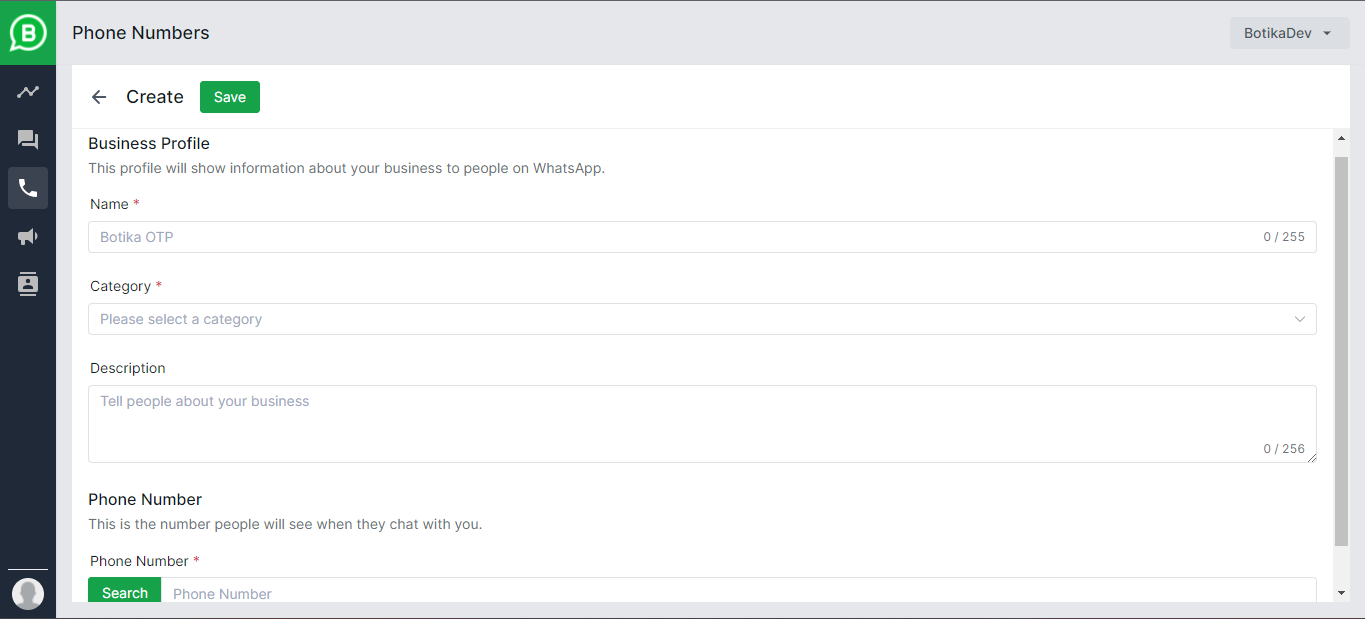
- To connect a new phone number, go to the Phone Numbers page by clicking it from the left-side navigation.
- Click the + Add Phone Number button and follow the registration steps provided by Facebook.
- Once you have completed the registration process, your request will be reviewed by Facebook for approval. You can only use the registered number to send messages after it is approved. You will be notified via email once your account is approved. Alternatively, you can check the WhatsApp number status in the data table on the "WhatsApp Numbers" page.
WhatsApp Number Status
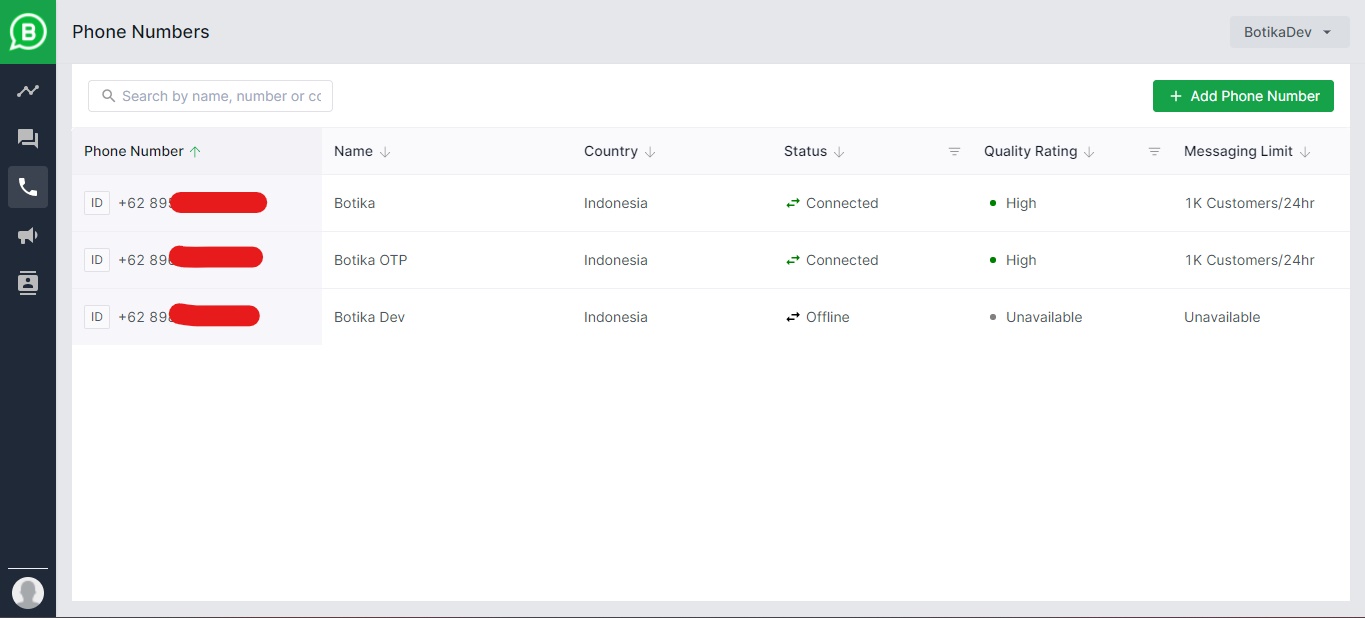
For every registered WhatsApp number, you will see a status on the "WhatsApp Numbers" page. Here's what each status means:
| Trial | You have successfully registered a new WhatsApp number to your WhatsApp Business Account (WABA) for the first time and are awaiting verification from Facebook. You can send a sample message using the trial experience feature. |
| New Request | You have successfully registered another new WhatsApp number and are awaiting verification from Facebook. |
| Connected | Your WhatsApp number has been verified by Facebook and is awaiting two-factor verification from waofficial.botika. |
| Business Account | Your WhatsApp number has been verified by both Facebook and waofficial.botika, and can be used to create and broadcast messages.. |
| Official Account | Your WhatsApp number has been upgraded from a business account to an official account. |
| Rejected | Your request for connecting a new phone number has been rejected by WhatsApp. In this case, one of the following may be the reason:
|