
Manage Your Contacts
How to Create a New Contact
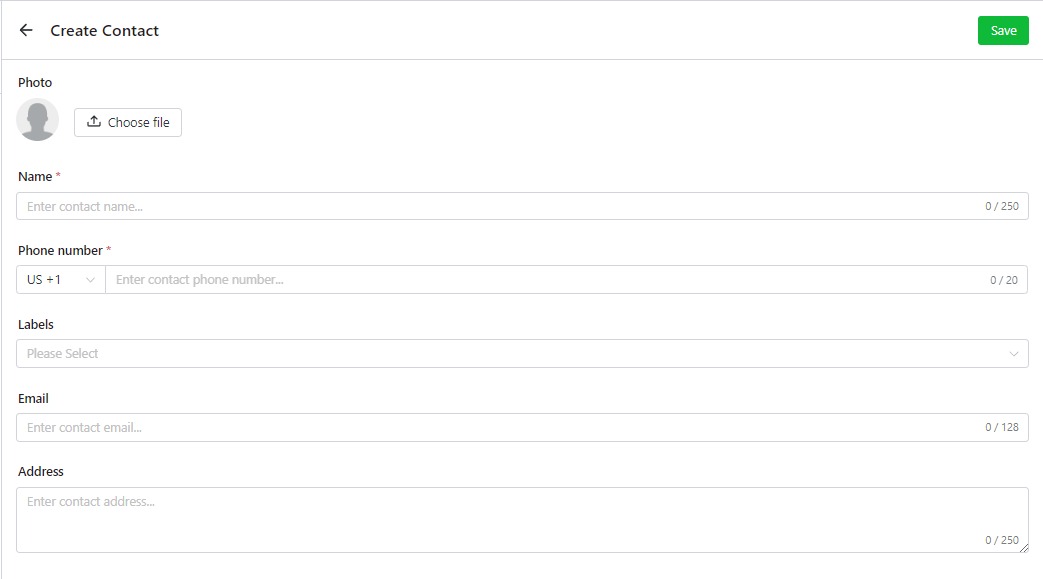
- Go to the Contacts page by clicking from the left-side navigation, and click + Create Contact on the top right of the page.
- Type in the contact name and please note that the maximum character limit for the contact name is 250.
- Fill in the contact telephone number. Ensure that the contact telephone number is filled in accurately. Please note that the maximum character limit for telephone numbers is 20.
- If applicable, please select the relevant label from the dropdown menu for the contact category. You can select multiple labels if needed.
- Providing email and contact addresses is optional. If you choose to provide an email address, the maximum character limit is 128.
Edit Contact
- If you need to make changes to an existing contact, simply click on the settings icon located on the right-hand side of the contact row that you wish to edit.
- You can preview the contact information that has been created or modified previously. To make any changes to the information, simply click on the "Edit" button.
- Please ensure that the column is filled in with the correct data. Once you have finished editing, kindly click on the "Save" button.
Delete Contact
If you want to delete an existing contact, select the contact you want to delete and click the "Delete" button in the right column.
Create New Label
- To access the label, please navigate to the contacts menu and select "Label" from the options available on the left-hand side.
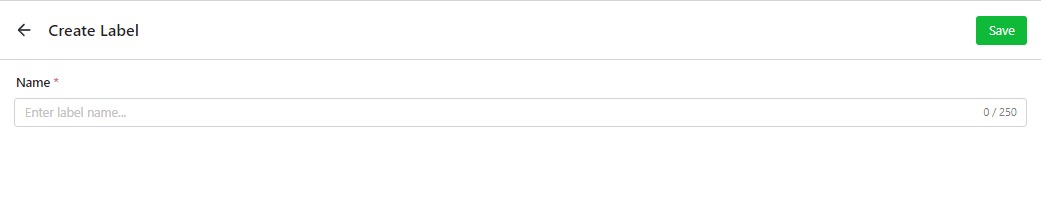
- To create a new contact label, simply click on the "Create Label" button located on the top right of the page.
- You may proceed to name the label by filling in the name field.
- Once you have finalized the label name, please click on the "Save" button to save the label.
Edit Label
- If you need to make changes to an existing label, simply click on the settings icon located on the right-hand side of the label row that you wish to edit.
- To edit the name of a created label, simply click on the "Edit" button located on the top right-hand corner.
- Kindly ensure that the column is filled in with the correct data. Once you have finished editing, please click on the "Save" button to save your changes.
Add contact to Label
- If you need to add contacts to an existing label, simply click on the settings icon located on the right-hand side of the label row you wish to edit.
- To add contacts to a label, simply click on the "Add Contact" button located next to the "Edit" button.
- You may select the contacts that you wish to add to the label. Once you are finished, please remember to click on the "Save" button.
Delete label
If you want to delete an existing label, select the label you want to delete and click the "Delete" button in the right column. When deleting a label, you will have the option to either keep all contacts and delete the label (which will retain all the contacts or members that were previously registered in the label while deleting the label), or to delete all contacts and the label (which will delete both the contacts and the label).